Your phone or computer shows a strong Wi-Fi signal, but websites will not load, apps report that they are offline, and Windows may display “No Internet, secured.” This situation is confusing because the device appears to be connected.
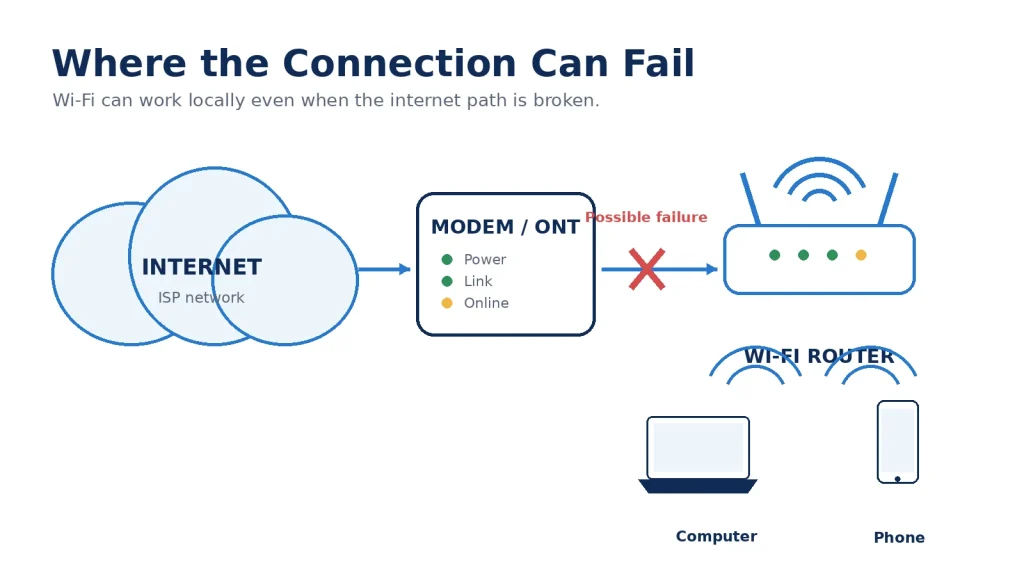
The explanation is simple: connecting to Wi-Fi only confirms that your device can communicate with the wireless router. It does not confirm that the router can reach your internet service provider.
The failure may be located on one device, inside the router, between the router and modem, at the DNS server, or somewhere in your provider’s network. Instead of changing random settings, use the checks below to identify which part of the connection has failed.
The quick answer
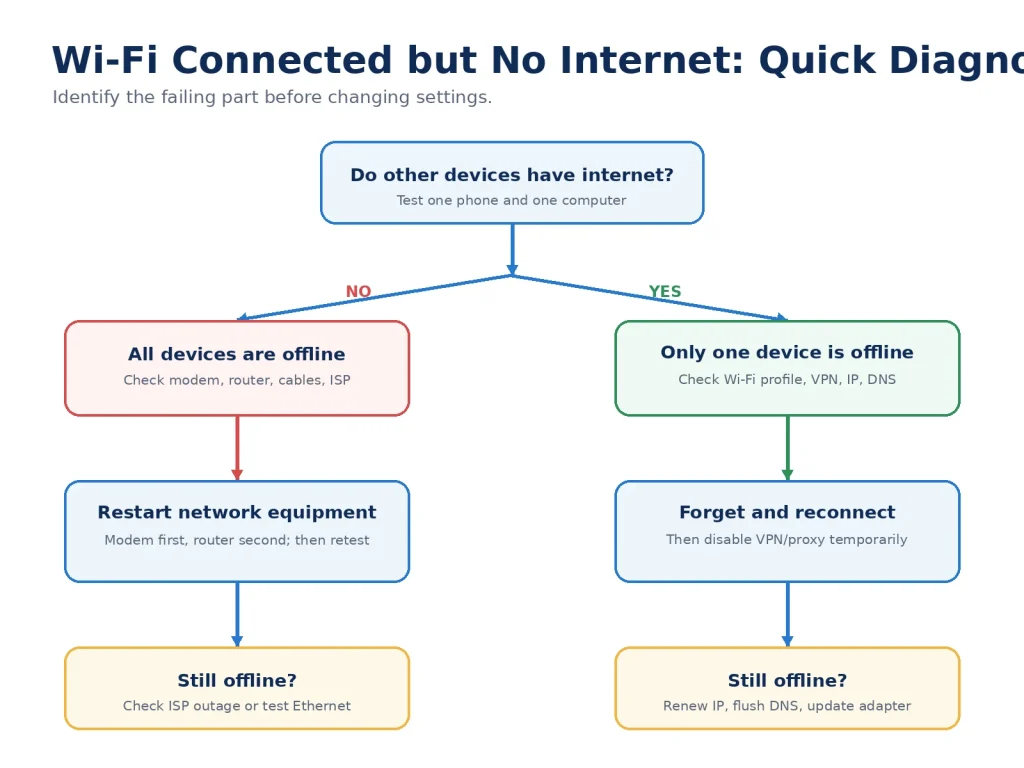
When Wi-Fi is connected but the internet does not work, begin by testing another device on the same network.
- If every device is offline, check the modem, router, cables and internet provider.
- If only one device is offline, focus on that device’s saved Wi-Fi profile, VPN, IP address, DNS settings or network adapter.
- If the connection works near the router but fails in one room, you probably have a coverage problem rather than an internet outage.
- If you are using hotel, airport, school or café Wi-Fi, the network may require a browser sign-in page.
Do not factory-reset the router or purchase new equipment before completing these basic checks.
What “connected but no internet” means
A normal home connection contains several separate links:
- Your phone or computer connects to the Wi-Fi router.
- The router connects to a modem or fiber ONT.
- The modem or ONT connects to your internet provider.
- The provider routes your traffic to websites and online services.
- DNS servers translate website names into the IP addresses used by network equipment.
The Wi-Fi icon primarily describes the first link. Your device may still communicate with the router, printers, shared folders or a local NAS even when one of the later links has failed.
Windows also performs an internet connectivity check. When the computer can reach the local Wi-Fi network but the check cannot reach the expected internet service, Windows may display a no-internet status. Microsoft describes this as limited connectivity: the computer is connected to the local network but cannot access internet services.
Diagnose the problem before changing settings
Use the following table to narrow down the cause.
| Test result | Most likely area to investigate |
|---|---|
| Every device is offline | Modem, router, cables or ISP |
| Only one device is offline | Device settings, driver, VPN, IP or DNS |
| Ethernet works but Wi-Fi does not | Router Wi-Fi or wireless adapter |
| Internet works near the router but not in one room | Coverage, distance or interference |
| Apps work but website names do not load | DNS or browser configuration |
| Public Wi-Fi connects but does not open websites | Captive sign-in portal |
| The problem began after changing routers | Old Wi-Fi profile, DHCP or router setup |
| The problem began after an update | Driver, VPN, firewall or operating-system setting |
Change one thing at a time and retest. If several settings are changed together, you may fix the problem without knowing which change mattered.
1. Test another website and another device
First, rule out a single broken website or application.
Try opening two unrelated websites. Then test another app that requires internet access. If one website fails while everything else works, the Wi-Fi connection is probably not the problem.
Next, connect a second device to the same Wi-Fi network.
If the second device works normally, the modem, router and ISP connection are probably functioning. Concentrate on the original device.
If the second device is also offline, move to the modem and router checks below.
This one-minute comparison is the most useful step in the entire process because it separates a device problem from a network-wide problem.
2. Check for a public Wi-Fi sign-in page
Hotels, cafés, airports, schools and guest networks often use a captive portal. Your device connects to the access point first, but internet access remains blocked until you accept the terms or enter a room number, email address or access code.
Open a browser and try visiting a simple website. The network may redirect you to its sign-in page.
If no sign-in page appears:
- Turn Wi-Fi off and back on.
- Forget the public network and reconnect.
- Temporarily disable a VPN.
- Check whether the network has opened a sign-in notification.
- Ask the network operator whether the access code has expired.
Avoid entering sensitive information on an unfamiliar public network, and do not assume that a strong Wi-Fi signal means the network is trustworthy.
3. Turn Wi-Fi and airplane mode off and back on
A temporary connection state can prevent the device from requesting a usable IP address or completing an internet check.
On a phone, tablet or laptop:
- Turn Wi-Fi off.
- Wait approximately ten seconds.
- Turn Wi-Fi back on.
- Reconnect to the correct network.
You can also turn airplane mode on, wait ten seconds, and turn it off again.
Google’s Android troubleshooting guidance recommends restarting the device and switching between Wi-Fi and mobile data to determine whether the problem is limited to one connection type.
If mobile data works while Wi-Fi does not, continue troubleshooting the Wi-Fi network. If neither connection works, the problem may be inside the device or the affected application.
4. Forget the Wi-Fi network and reconnect
A saved Wi-Fi profile can contain an outdated password, security setting, static IP address or corrupted configuration.
Forget the network on the affected device, then reconnect using the current password.
On Windows
Open the known-network settings, select the affected Wi-Fi network, choose Forget, and reconnect from the available-network list.
On iPhone or iPad
Open Wi-Fi settings, select the information button beside the network, choose Forget This Network, and reconnect.
Apple notes that a checkmark beside the network name confirms that the device has joined the Wi-Fi network. However, a successful Wi-Fi association does not necessarily confirm that the network has internet access.
On Android
Open the saved-network settings, select the network, choose Forget, and reconnect. Menu names differ between phone manufacturers.
Forgetting a network removes its saved settings from that device. It does not change the router or disconnect other users.
5. Temporarily disable VPN, proxy and filtering software
VPN applications, manual proxy settings, third-party firewalls, security filters and parental-control tools can interrupt internet traffic even when Wi-Fi remains connected.
Temporarily disable:
- VPN applications;
- manually configured proxy servers;
- third-party firewall or web-filter software;
- browser privacy extensions that control DNS or traffic;
- device-level parental-control applications.
Then test the connection again.
Do not permanently disable security software merely to make the connection work. If disabling one application solves the problem, update or reconfigure that application before turning it back on.
Also check whether the router has paused the affected device. Many router and mesh applications allow an administrator to suspend internet access for an individual phone, television or computer while leaving it connected to Wi-Fi.
6. Restart the modem and router in the correct order
Restarting the equipment can rebuild the connection to the ISP, renew addresses and clear a temporary router fault.
If you have separate devices:
- Unplug the router.
- Unplug the modem or fiber ONT.
- Wait at least 30 seconds.
- Reconnect the modem or ONT first.
- Wait until its connection or online lights stabilize.
- Reconnect the router.
- Wait several minutes for Wi-Fi and internet service to return.
- Test the connection again.
If you have one combined modem-router gateway, restart that single unit.
Microsoft and Google both include modem or router restarts in their official connection troubleshooting procedures.
A restart is different from a factory reset. Restarting preserves your network name, password and settings. A factory reset erases them.
7. Check cables and status lights
A loose Ethernet cable can leave the Wi-Fi network active while disconnecting the router from the modem.
Inspect:
- the cable between the modem or ONT and the router’s internet or WAN port;
- the incoming coaxial, telephone or fiber connection;
- the power adapters;
- any Ethernet coupler or wall socket in the connection path;
- the modem’s online, link or alarm indicators;
- the router’s internet or WAN indicator.
Remove and firmly reconnect ordinary Ethernet cables. If a cable is damaged, sharply bent or has a broken locking tab, replace it.
Do not unplug, bend or clean the exposed end of a fiber-optic cable unless your internet provider has given you specific instructions. Fiber connectors can be delicate and may be unsafe to inspect directly.
Status-light meanings vary by manufacturer. Check the modem or router documentation before assuming that a red, orange or blinking light indicates a particular fault.
8. Check for an ISP outage
If every device is affected and the modem’s online light is off, blinking unexpectedly or showing an alarm state, your internet provider may be experiencing an outage.
Using mobile data or another connection:
- Check the provider’s official service-status page or application.
- Look for maintenance notifications.
- Confirm that the account is active and paid.
- Ask whether the modem or ONT is visible from the provider’s network.
- Report the status-light pattern.
An outage may affect only one neighborhood, building or local exchange, so a general outage website is not always conclusive.
Before contacting support, note when the problem began, which lights are active, whether Ethernet works, and whether all devices are affected. These details help the provider distinguish a line problem from a Wi-Fi problem.
9. Test Ethernet to separate Wi-Fi from the internet connection
When possible, connect a laptop directly to the router with Ethernet.
If Ethernet works
The modem and internet service are probably functioning. Focus on:
- the router’s wireless settings;
- Wi-Fi interference;
- the affected device’s wireless adapter;
- distance from the router;
- router firmware;
- band compatibility.
If the internet works near the router but becomes unreliable in one room, use LanNook’s guide to why Wi-Fi is slow in one room. A faster internet plan will not repair a weak radio path inside the home.
If Ethernet also fails
The problem is more likely to involve:
- the router’s WAN connection;
- the modem or ONT;
- the ISP;
- DHCP or DNS configuration;
- a damaged cable.
Do not buy a Wi-Fi extender to fix a modem or ISP outage. Extenders only repeat an existing network connection.
10. Renew the IP address and flush DNS on Windows
Your router normally assigns an IP address to each device using DHCP. If Windows receives an invalid address or retains stale network information, it may remain connected to Wi-Fi without reaching the internet.
Open Command Prompt as administrator and run:
ipconfig /release
ipconfig /renew
ipconfig /flushdns
If that does not work, Microsoft also recommends resetting the Windows network stack with:
netsh winsock reset
netsh int ip reset
Restart the computer after running the reset commands.
An address beginning with 169.254 often means Windows could not obtain a normal address from the router. Check that DHCP is enabled in the router and that the router has not exhausted its available address pool. Microsoft includes IP renewal, DNS flushing and network-stack resets in its current Wi-Fi troubleshooting guidance.
Do not paste unfamiliar networking commands from random websites. Use commands documented by the operating-system provider and record any manual settings before changing them.
11. Test whether DNS is the problem
DNS converts readable names such as a website domain into the IP address needed to reach the server. A DNS failure can make the internet appear unavailable even when the underlying connection still works.
Possible signs of a DNS problem include:
- some apps connect but websites do not;
- websites work by IP address but not by name;
- the router and ISP connection appear normal;
- changing networks immediately solves the problem;
- an error specifically mentions name resolution or DNS.
Start by flushing the device’s DNS cache and restarting the router.
You may temporarily test a reputable public DNS resolver. However, changing DNS should not be the first response to every Wi-Fi problem. It cannot repair a disconnected modem, weak signal, damaged cable or ISP outage.
If changing DNS solves the problem, check whether the router is receiving valid DNS addresses from the ISP. Also review any VPN, parental-control or encrypted-DNS settings that may override the router’s configuration.
12. Update software, drivers and router firmware
If only one computer is affected, update its operating system and wireless adapter driver.
On Windows:
- Run Windows Update.
- Open Device Manager.
- Locate the wireless network adapter.
- Check for an updated driver from Windows or the computer manufacturer.
- Restart the computer.
If the problem began immediately after a driver update, the manufacturer’s previous stable driver may be more reliable than a generic replacement.
Also check the router manufacturer’s application or administration interface for firmware updates. Router firmware may contain stability, compatibility and security fixes.
Avoid downloading router firmware or network drivers from unofficial download websites. Use the router manufacturer, computer manufacturer or operating-system provider.
Use network reset only as a later step
Network reset removes saved adapter configurations and returns many network settings to their defaults.
It may help when:
- the problem began after an operating-system upgrade;
- VPN software left behind broken network components;
- the adapter configuration is corrupted;
- ordinary reconnecting and IP renewal did not work.
However, it may also remove saved Wi-Fi networks, VPN adapters, static addresses and other custom settings.
Record important settings first. On a work or school computer, contact the administrator before resetting the network configuration.
Factory-reset the router only as a last resort
A factory reset erases the router’s configuration. Depending on the internet service, you may need to re-enter:
- the Wi-Fi network name and password;
- ISP login credentials;
- VLAN or connection settings;
- mesh-node configuration;
- port-forwarding rules;
- parental controls;
- reserved IP addresses;
- custom DNS settings.
Before resetting, confirm that you know how to configure the router again and that you have any credentials supplied by the ISP.
A factory reset is reasonable when the router configuration is inaccessible or clearly corrupted. It should not be the first response to a temporary outage.
What not to do
Do not change every setting at once
Change one variable, retest, and record the result. Random changes make diagnosis harder.
Do not immediately buy a faster internet plan
A faster plan does not fix a device that cannot obtain an IP address, a disconnected modem or a damaged Ethernet cable.
Do not place an extender inside a dead zone
An extender needs a usable connection to the main router. If it is placed where the original signal has already failed, it has little useful capacity to repeat.
Do not repeatedly reboot the router
One controlled restart is a valid diagnostic step. A router that needs daily reboots may have a heat, firmware, power-supply or hardware problem.
Do not factory-reset equipment without the login details
You may turn a temporary outage into a complete configuration problem.
When should you contact your ISP?
Contact the provider when:
- all devices are offline;
- Ethernet and Wi-Fi both fail;
- the modem or ONT shows an alarm or no online connection;
- the incoming service cable appears damaged;
- the provider cannot detect the modem;
- the problem returns repeatedly at similar times;
- the router receives no WAN address;
- service has not returned after a controlled restart.
Tell support which devices were tested, whether Ethernet worked, what the modem lights displayed, and when the failure began.
When should you replace the router?
Replacement may be reasonable when:
- the router frequently restarts or overheats;
- Ethernet works through the modem but repeatedly fails through the router;
- firmware is no longer supported;
- ports or antennas are physically damaged;
- the router cannot provide stable service even after configuration and firmware checks;
- modern devices have compatibility problems that the manufacturer will not fix.
Do not replace the router solely because one website or one device stopped working.
Final checklist
Work through these checks in order:
- Test another website.
- Test another device.
- Check for a public-network sign-in page.
- Toggle Wi-Fi or airplane mode.
- Forget and reconnect to the network.
- Disable VPN or proxy settings temporarily.
- Restart the modem and router.
- Inspect cables and status lights.
- Check for an ISP outage.
- Compare Ethernet with Wi-Fi.
- Renew the IP address and flush DNS.
- Update drivers and router firmware.
- Use network reset only if necessary.
- Factory-reset the router only as a final step.
The most important question is not simply, “Why is the internet down?” It is, “Which link in the connection is failing?” Once you identify whether the problem affects one device, the Wi-Fi link, the router, the modem, DNS or the provider, the correct fix becomes much easier to find.
Frequently asked questions
Why does my Wi-Fi say connected but no internet?
Your device has successfully connected to the local wireless router, but the router or device cannot complete a connection to the internet. Common causes include an ISP outage, modem failure, incorrect IP settings, DNS failure, VPN configuration or a paused device.
What does “No Internet, secured” mean on Windows?
It generally means the computer has joined a secured Wi-Fi network but Windows cannot confirm internet access. The local Wi-Fi connection may still work while the modem, ISP, IP configuration or DNS connection has failed.
Why does Wi-Fi work on my phone but not my laptop?
The network itself is probably working. The laptop may have an outdated saved network, VPN or proxy setting, invalid IP address, DNS problem, wireless driver issue or disabled adapter setting.
Will changing DNS fix connected-without-internet problems?
Only when DNS resolution is the failing component. Changing DNS cannot fix a disconnected modem, ISP outage, weak Wi-Fi signal or damaged cable.
Can a router provide Wi-Fi without internet?
Yes. A router can create a local Wi-Fi network without an active internet connection. Devices may still communicate with local printers, shared folders, smart-home equipment or a NAS, but websites and cloud services will not work.